




Claude Code Tutorial for Chrome Extensions: Build in 30 Minutes
A beginner-friendly, no-code walkthrough: generate manifest, content script, and popup with Claude, then publish to the Web Store.

Article content
You have a great idea for a Chrome extension, but you don't know how to code. With Claude, you can build it in 30 minutes. This claude code tutorial chrome extension will show you how to build without code, save time, and launch your idea quickly. In this step-by-step guide, we'll show you how to build a simple Chrome extension with Claude, from start to finish.
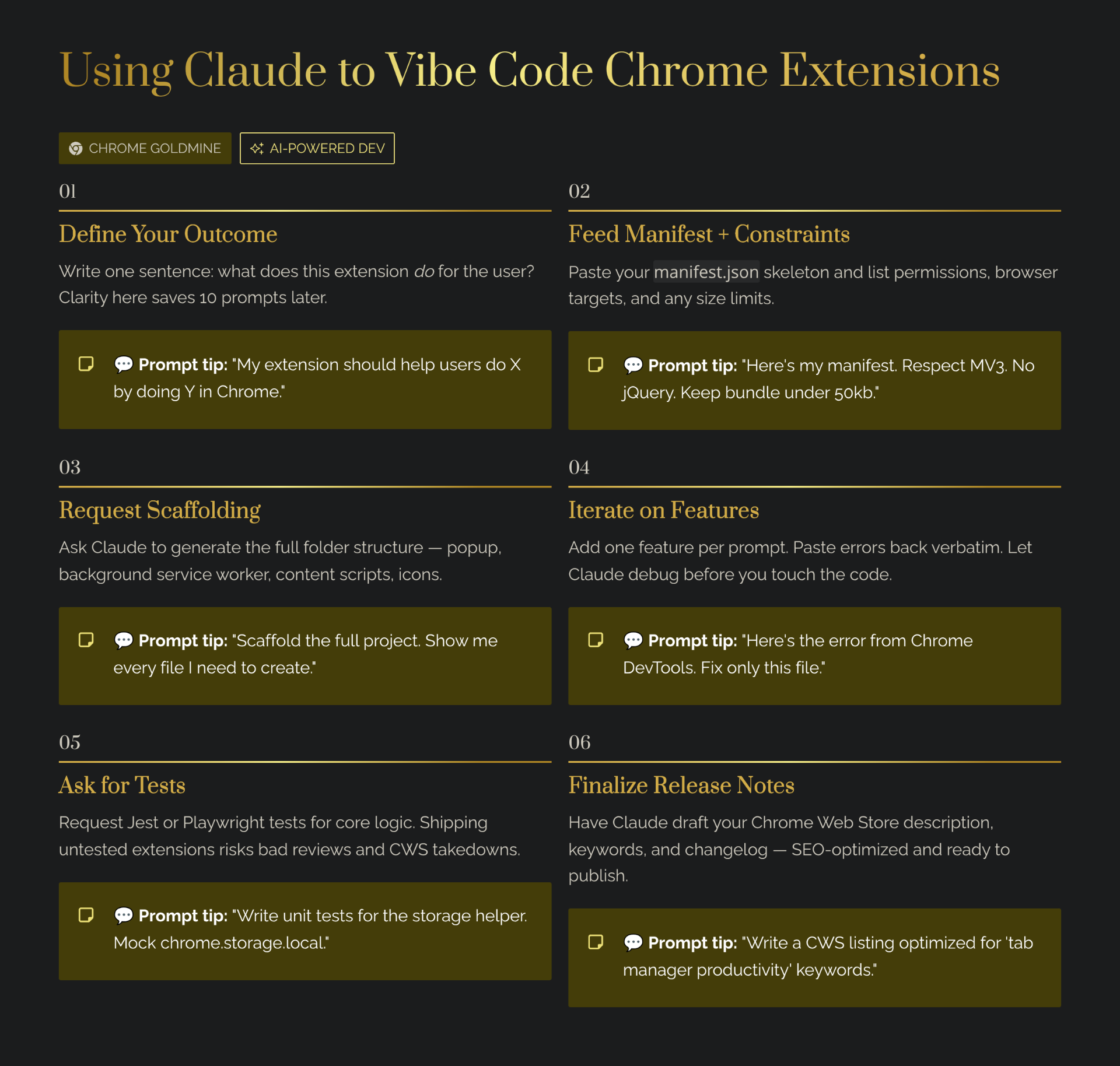
What is Claude and Why Use It for Chrome Extensions?
Claude is a next-generation AI assistant built by Anthropic that can help you with a wide range of tasks, including writing code. What makes Claude particularly powerful for Chrome extension development is its ability to understand context and generate clean, well-structured code from natural language prompts. If you're still comparing builders, our side-by-side review of Lovable, MindStudio, and Bolt covers where each one beats Claude — and where it doesn't.
Compared to traditional development, using Claude can reduce your development time by up to 80%. A task that might take a traditional developer several hours can often be completed in 30 minutes or less with Claude. This makes it an ideal tool for indie makers and non-technical founders who want to build a Chrome extension without writing code.
Before You Start: Installation and Setup
- Install Claude in Chrome — Visit the Chrome Web Store and search for 'Claude in Chrome.' Click 'Add to Chrome' to install the extension.
- Create a Project Folder — Create a new folder on your computer to store your project files. For example, 'my-first-extension' in your Documents folder.
- Choose a Text Editor — You'll need a text editor to view and edit the code. We recommend VS Code (free and powerful) or Sublime Text.
- Sign Up for Claude — If you haven't already, sign up for a Claude account at claude.ai. You can start with the free tier or upgrade to Claude Pro for $20/month.
Step 1: Generating the Manifest File (5 minutes)
The manifest.json file is the heart of your Chrome extension. It tells Chrome everything it needs to know about your extension, such as its name, version, permissions, and which scripts to run. To generate it, open Claude and enter a detailed prompt:
"Generate a manifest.json file for a Chrome extension called 'Page Background Color Changer' that changes the background color of web pages. Use manifest version 3, request activeTab permission, and include a content script that runs on all URLs."
Step 2: Building the Core Logic (15 minutes)
Now that you have your manifest file, it's time to build the core logic of your extension. There are two main types of scripts in a Chrome extension:
- Content Scripts run in the context of web pages and can interact with the DOM. They're perfect for extensions that need to modify or read web page content.
- Background Scripts run in the background and can listen for events. They're perfect for extensions that need to coordinate actions across multiple tabs or store data.
Use this prompt to generate a content script:
"Generate a content.js file for a Chrome extension that changes the background color of the page to a light blue (#E3F2FD). Add a console log message to confirm the script is running."
Step 3: Testing and Debugging (5 minutes)
- Open Chrome and navigate to chrome://extensions
- Toggle on 'Developer mode' in the top right corner
- Click 'Load unpacked' in the top left
- Select the folder where you saved your project files
- Your extension will now appear in the list of installed extensions
Navigate to any web page (try google.com) and you should see the background color change. If you added the popup interface, click the extension icon in your toolbar to see the popup with color options. Before you ship a real product, skim our list of 7 vibe coding mistakes that derail Chrome extension projects — most are caught in this exact testing step.
Step 4: Deployment (5 minutes)
Once you're happy with your extension and have tested it thoroughly, it's time to deploy it to the Chrome Web Store so others can use it. Before you submit, prepare professional store listing graphics — Canva has templates that make creating screenshots and promotional tiles a 15-minute job.
- Go to the Chrome Web Store Developer Dashboard
- Create a developer account (one-time $5 fee)
- Click 'New Item' and upload your .zip file
- Fill out the store listing with description, screenshots, and categories
- Submit for review (typically takes 1-3 days)
Advanced Features You Can Add
- Local Storage: Ask Claude to add code that saves user preferences using Chrome's storage API.
- Options Page: Create a dedicated options page where users can customize behavior.
- Context Menus: Add right-click menu options that trigger your extension's functionality.
- Keyboard Shortcuts: Allow users to trigger your extension with keyboard shortcuts.
- API Integration: Connect your extension to external APIs to fetch data or send information.
- SaaS Boilerplate Integration: If your extension needs user accounts, subscription billing, or a web dashboard, ask Claude to integrate with a starter kit like Supastarter or TurboStarter. These boilerplates handle auth, payments, and database setup out of the box, letting Claude focus on the extension-specific logic.
- Backend Automation: To add backend automation to your Claude-built extension, check out our Lovable + Latenode integration guide.
Conclusion
Building a Chrome extension with Claude is faster and easier than ever before. In just 30 minutes, you can go from idea to working extension without writing a single line of code yourself. The key is to use clear, specific prompts and to test your extension incrementally as you build. Once you're live, create a simple landing page with Framer to capture leads and drive CWS installs. Ready to scale? Learn which extension types work best for solo makers.
Need ideas for what to build? See how to find expired extension ideas. For more inspiration, check out our pillar article: Vibe Coding Tools for Chrome Extension Development: 2026 Guide. Ready to tackle a more advanced project? Our complete guide to using Claude to rebuild expired Chrome extensions walks through Manifest V3 patterns, monetization gates, and Web Store approval.