





Designing a "Deal Flow" CRM for Chrome Extensions in Notion
Step-by-step Notion database setup — properties, formulas, and 4 views — to track and score Chrome extension acquisition opportunities.
Article content
You can build a Chrome extension deal flow CRM in Notion by creating a database with properties like Extension Name, Category, Install History, Deal Stage, and an Opportunity Score formula. This system lets you track expired and active extensions through a sourcing-to-evaluation pipeline, with views and filters that surface the highest-potential opportunities first. With Notion's built-in formulas, board views, and CSV import, the entire setup takes two to three hours — and it immediately replaces the bookmarks, spreadsheets, and mental notes you're currently losing opportunities in.
Here's exactly how to build it.
Why Notion Is the Right Tool for Chrome Extension Deal Flow
"Deal flow" is a term VCs use to describe the stream of investment opportunities moving through their pipeline at any given time. For indie makers and vibe coders evaluating Chrome extensions, the concept is identical — you have a stream of potential builds or acquisitions, and you need a system to track them from first discovery through final decision.
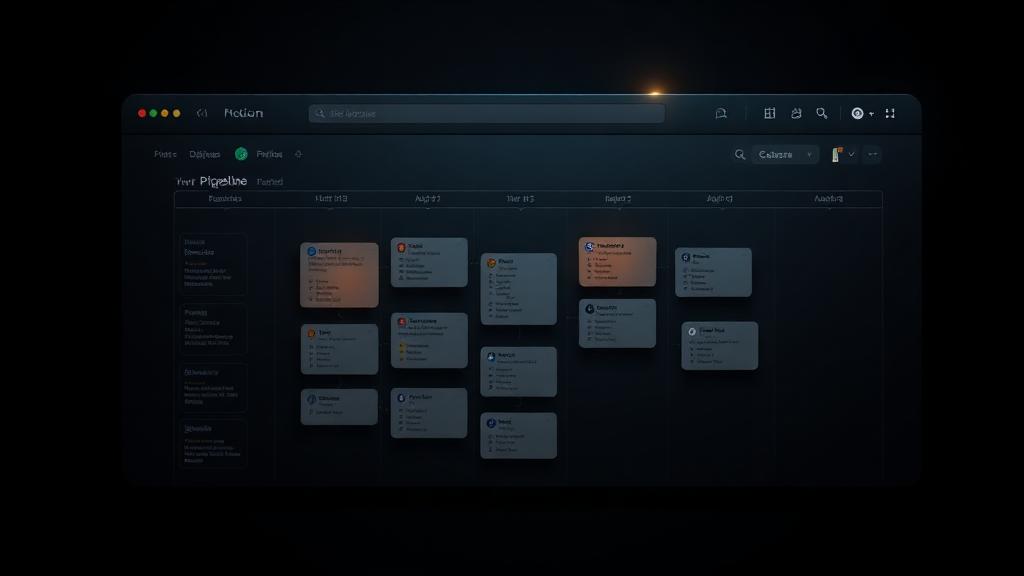
Notion is unusually good at this because it treats databases as living documents. Unlike a spreadsheet, a Notion database can display the same data as a kanban board (so you can see your pipeline stages at a glance), a filtered table (for sorting by Opportunity Score), a calendar (for tracking due dates), and a gallery (for visual scanning). You switch between these views without duplicating your data — they're all looking at the same underlying records.
The other advantage is that Notion's database records are full pages. Each extension you track isn't just a row with a few cells — it's a page that can hold your research notes, a due diligence checklist, embedded screenshots, links to developer profiles, and your internal reasoning. That's not something a spreadsheet can match.
Notion reached over 100 million users as of September 2024 (Notion Blog), with database and CRM use cases among the most popular applications on the platform. The platform generated $400 million in annual revenue in 2024 — a 60% year-over-year increase — with over 50% of Fortune 500 companies now using it (Tap Twice Digital). Indie makers have borrowed deal flow frameworks from VC workflows for years — this tutorial scales that methodology down to one person evaluating Chrome extension opportunities.
The hardest part of building any deal flow system isn't the Notion setup — it's sourcing enough quality opportunities to make it worthwhile. You can have the perfect CRM structure, but if you're only tracking three or four extensions you stumbled across randomly, the system feels empty. That's why starting with a curated database of 9,656+ expired extensions makes the CRM immediately valuable. Chrome Goldmine provides CSV export of expired extensions already organized by category, install history, and last active date — the exact properties you'll build into your database below.
The Core Database: Properties You Need to Build
Open Notion and create a new full-page database (click + in the sidebar → Database). Name it something like Extension Deal Flow. Now you're going to add the following properties — think of these as the columns that define what you know about each opportunity.
Identity Properties
Extension Name is your Title property (every Notion database has one by default). This is the primary identifier for each record.
Chrome Web Store URL should be a URL property. This is the direct link to the extension's store page or its archived listing if it's expired. Always fill this in — it's your evidence trail.
Category should be a Select property with options like Productivity, Developer Tools, Social, Content, Shopping, and Lifestyle. Select (not Multi-select) keeps your filtering clean when you want to view "all Productivity opportunities."
Extension Status is a Select property capturing whether the extension is Expired, Active, Abandoned (still listed but not updated in 18+ months), or Acquired. This is different from your internal deal stage — it describes the extension's current state on the Chrome Web Store.
Pipeline Properties
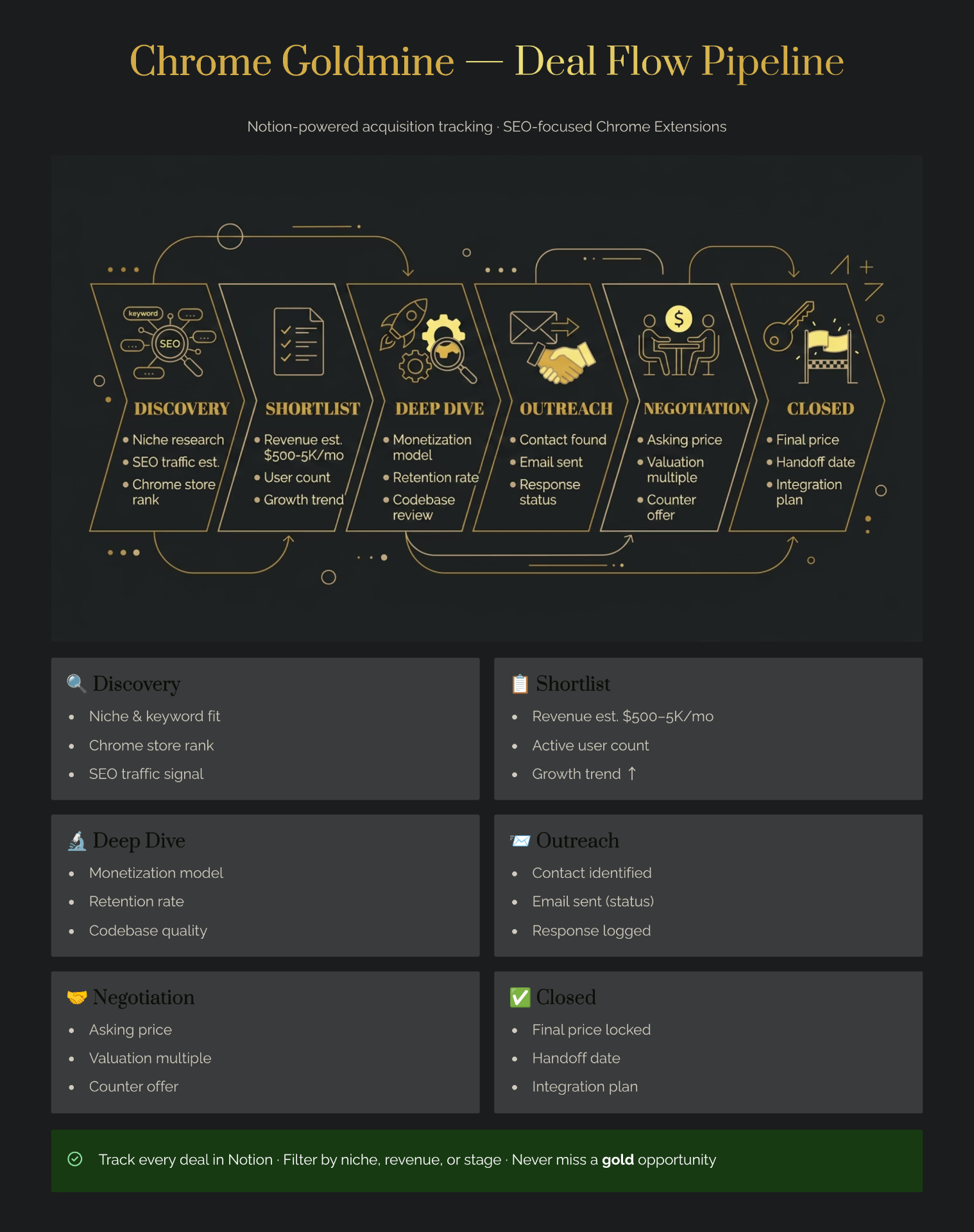
Deal Stage is your most important Select property. Use five stages: Sourcing (you've noticed it but haven't evaluated it), Evaluation (you're actively researching it), Due Diligence (you've decided it's worth serious investigation), Building/Acquiring (active work underway), and Passed (you decided not to proceed). This property powers your kanban board view.
Priority is a Select property with High, Medium, and Low options. You'll use this in filters to surface your hottest deals quickly.
Data Properties
Peak Install Count is a Number property representing the extension's historical install count at its peak — a rough proxy for proven user demand. Even an expired extension with 50,000 past installs proves the market existed.
Last Updated Date is a Date property. For expired or abandoned extensions, this tells you how long the opportunity has been dormant and whether it's early or late in its decay cycle.
Developer Contact is a Text or URL property for the developer's GitHub, LinkedIn, or email — essential if you're planning an acquisition conversation rather than a rebuild.
Chrome Goldmine Link is a URL property pointing to the extension's listing on Chrome Goldmine, if applicable. This gives you quick access to historical data and analysis you may have used during sourcing.
Scoring & Analysis Properties
Opportunity Score is a Formula property — you'll configure this in the next section.
Notes is a Text property for your quick observations. For deeper research, use the record's page body rather than this field.
Due Diligence Complete is a Checkbox property. You'll check this when you've worked through the due diligence checklist embedded in the record's page.
Your Opportunity Score formula is only as good as the data you feed it. Chrome Goldmine includes historical install counts, category classifications, and user review sentiment — properties that turn your scoring formula from guesswork into data-driven prioritization. You're not scoring random ideas; you're scoring proven demand with a documented track record.
Building the System Step by Step
With your properties defined, here's how to actually set up the database in Notion.
Step 1 — Create the database. In Notion's left sidebar, click + next to your workspace name and select "New page." Choose "Table" from the database options. Rename it "Extension Deal Flow."
Step 2 — Add your properties. Click the + icon at the right end of the column headers to add each property. For each one, choose the correct property type from the dropdown (Select, URL, Number, Date, etc.) before naming it. The type determines how Notion handles filtering, sorting, and formula references later.
Step 3 — Configure your Select options. For Deal Stage, Category, Extension Status, and Priority, click the property name to open its settings and add your option values. Use consistent colors — for example, make "High" priority red and "Passed" gray. These colors appear in your kanban board, making pipeline status scannable at a glance.
Step 4 — Add your Opportunity Score formula. Click the Opportunity Score property → Edit property → Formula. Here's a starting formula that weighs install count and recency:
if(prop("Peak Install Count") > 50000, 3, if(prop("Peak Install Count") > 10000, 2, 1)) + if(dateBetween(now(), prop("Last Updated Date"), "months") < 24, 2, 1)
This gives higher scores to extensions with large install bases (proven demand) and those that went dormant more recently (fresher opportunity). It's intentionally simple — you'll refine it as you understand your own evaluation criteria better. To populate your pipeline faster, build an AI agent that surfaces opportunities automatically.
Step 5 — Create your views. In the top-left of your database, click + Add a view to add each of the following.
The Four Views That Make Your Pipeline Useful
Raw data without views is just a table. Views are what turn your database into an actual deal flow system.
The Pipeline Board is your default daily view. Set it to Board view, grouped by Deal Stage. Every extension sits in a column (Sourcing, Evaluation, Due Diligence, etc.) and you drag cards between columns as deals progress. This is identical to how VCs manage startup deal flow — and it makes stale opportunities immediately visible because cards that haven't moved in weeks stand out.
The Hot Opportunities Table is a filtered Table view showing only records where Priority = High AND Deal Stage ≠ Passed. Sort by Opportunity Score descending. This is your shortlist — the extensions you should be actively thinking about. Open this view at the start of every work session.
The Sourcing Inbox is a filtered Gallery or Table view showing only Deal Stage = Sourcing. This is your unprocessed queue — extensions you've heard of or bookmarked but haven't evaluated yet. Your goal is to move records out of this view, either to Evaluation or Passed.
The Due Diligence Tracker is a filtered Table view showing Deal Stage = Due Diligence, with the Due Diligence Complete checkbox column visible. This view keeps your in-progress evaluations visible and ensures nothing falls through the cracks during your most intensive research phase.
The Archive (Passed) is a filtered Table view showing only Deal Stage = Passed or Extension Status = Acquired. You never delete records — you archive them. An extension you passed on two years ago might become relevant again after a market shift.
How to Import Data and Populate Your Pipeline
An empty CRM is useless. The goal is to get 20–30 real opportunities into your database as fast as possible so you can start learning from the system. For finding expired extensions to populate your pipeline, see our guide on how to find expired extension ideas.
Option 1 — CSV Import. Notion supports CSV import natively. Go to your database, click the three-dot menu (...) in the top right, and select "Import." Map your CSV columns to your Notion property names during the import wizard. Clean column headers in your CSV (like "Extension Name," "Category," "Peak Install Count") will map automatically.
The fastest way to populate your Notion CRM? Start with structured data. Chrome Goldmine provides CSV export with 9,656+ expired extensions already organized by category, install history, and last active dates — the exact properties you just set up in your database. Instead of manually hunting through Chrome Web Store archives for three or more hours, you import pre-validated opportunities in 10 minutes and immediately start evaluating.
Option 2 — Web Clipper + Manual Entry. Install the Notion Web Clipper from the Chrome Web Store. When you're browsing and spot a promising extension, click the clipper icon, choose your Extension Deal Flow database, and save the record. You'll need to fill in most properties manually, but the URL and title auto-populate. A more powerful alternative is Save to Notion, which lets you map capture fields to specific database properties on the fly.
Option 3 — Flylighter. If you're doing high-volume sourcing, the Flylighter Chrome extension lets you build custom "flows" that auto-fill Notion database fields with data scraped from the current page. You can configure a flow specifically for Chrome Web Store pages that captures the extension name, developer URL, and category automatically. Thomas J. Frank's documentation on Flylighter integration shows exactly how to set this up with structured databases.
Time Investment: Building vs. Using Your Deal Flow CRM
| Phase | Time Required | Ongoing Maintenance | Time Saved vs. Scattered Notes |
|---|---|---|---|
| Initial database build (following this guide) | 2–3 hours | None (one-time) | N/A |
| Adding 10 extension opportunities | 30–45 min first time; 15–20 min with practice | Varies by sourcing frequency | ~40% faster with template fields |
| Due diligence per extension | 1–2 hours | Progress tracked automatically | ~30% (no lost notes, clear checklist) |
| Weekly pipeline review | 10–15 min/week | Ongoing | ~60% faster vs. scattered bookmarks |
Assumptions: Estimates based on the Gem Media and NotionVC template case studies, adjusted for indie maker scale (15–20 properties, 4–5 views). Add 1–2 hours if you're new to Notion. The comparison baseline is Google Sheets + browser bookmarks + text notes.
The Due Diligence Checklist Inside Each Record
Once an extension reaches Due Diligence stage, you need a consistent evaluation framework. Notion's greatest advantage here is that each database record is a full page — you can build a living checklist directly inside each extension record. Once your top picks are identified, use our $1,000/month side income blueprint to plan your portfolio strategy.
Open any record and add the following checklist items to the page body. You can save this as a Notion template (click "New" dropdown → "New template" in your database) so every new record starts with the same checklist pre-populated:
- Confirm extension is no longer actively maintained (last update > 12 months)
- Verify install count history and trend direction (use our reverse engineering framework for a systematic teardown)
- Check user review sentiment and key complaints (unmet needs = build opportunity)
- Research developer — are they reachable? Have they abandoned the project or are they still active on other tools?
- Confirm no trademark or IP conflicts with the extension name or functionality
- Validate that the core functionality is still technically feasible under Manifest V3 (extensions relying on deprecated MV2 APIs need rebuild consideration)
- Estimate rebuild complexity: simple UI extension vs. complex background service vs. API-dependent workflow
- Check if a competitor has already filled this gap (search Chrome Web Store for current alternatives)
- Estimate minimum viable version scope and time-to-launch
When you check the Due Diligence Complete checkbox on the record (the database property you created earlier), the record automatically becomes filterable as "fully evaluated" — no manual status update required.
For a deeper framework on evaluating expired extensions specifically, see our guide on how to validate your Chrome extension idea — many of those criteria map directly to checklist items above.
What Doesn't Work: Common Mistakes When Building This CRM
Building this system wrong is easy. Here are the two failure modes that community members and Notion power users run into consistently.
Mistake 1 — Too many properties. The Gem Media Private Equity OS template includes dozens of properties covering financial modeling, partner relationships, and legal tracking. That's appropriate for managing real capital — not for an indie maker evaluating Chrome extensions on weekends. Adding 40+ properties to your database makes it unusable on mobile, slow to fill in, and visually overwhelming. The sweet spot for this use case is 15–20 properties. If you find yourself wanting to add more, create a linked database for that information instead of cramming everything into one table.
Mistake 2 — Building the system instead of using it. Notion's flexibility is a trap. It's genuinely fun to add new views, tweak formula syntax, and reorganize property groups. But if you spend three weeks refining your CRM and never actually move a deal past the Sourcing stage, the system has failed. Set a rule for yourself: add a new record before you change anything structural. The system reveals its own gaps through use — not through anticipation.
Conclusion
A Chrome extensions deal flow CRM in Notion gives you the same systematic advantage that VCs use for startup sourcing — applied at indie maker scale. You're not relying on memory or browser bookmarks anymore. Every opportunity has a stage, a score, and a full research record. Your pipeline is visible. Your due diligence is consistent. Your decisions are documented.
The system works whether you're tracking 10 extensions or 100. It takes two to three hours to set up following this guide, and about 15 minutes per week to maintain. The properties you built today will surface patterns you can't see in scattered notes — which categories have the most expired opportunities, which install ranges suggest realistic rebuild targets, which developers are reachable for acquisition conversations.
But remember: the system amplifies your sourcing — it doesn't replace it. If you're starting from zero, Chrome Goldmine gives you instant access to 9,656+ validated opportunities to populate your new CRM today. Import the CSV, apply your Opportunity Score filter, and you'll have a pipeline of high-potential Chrome extensions to evaluate by this afternoon.
Ready to take the next step? Try our Weekend Challenge to go from your Notion pipeline to your first dollar in 48 hours. Or, if your CRM surfaces a promising expired extension, follow our 7-day revival playbook to transform it into a micro-SaaS.